When walls, floors and roof framing appear together in a light steel model, the area you need to check can be obscured. An engineer wants to understand a roof-to-wall relationship; an installation crew needs one work area rather than the whole building; fabrication is comparing a frame group with its drawings. Temporarily removing unrelated visual clutter keeps the discussion focused and makes locations needing clarification easier to recognise.
This guide uses LGSF Market to hide/show groups and isolate a group — Solo in an LGS/CFS model. You will reduce obstructions, bring relevant groups back for comparison and return to the overview. These are viewing controls for a visual review: hiding a frame does not delete it from the IFC.
Quick workflow
Choose the storey and group → Hide an obstruction or isolate a group → Show related groups to inspect their relationship → Restore context and communicate.
Choose the action that answers your current question. Isolating every group, displaying every frame ID and changing colours are not prerequisites for viewing.
Video and three distinct controls
Watch: Frame Group Controls — Colors, Labels, Visibility & Solo.
| What do you need? | Control on the group header | What changes? |
|---|---|---|
| Remove one group that obscures the area | Hide this group / Show this group, lightbulb icon | That group's geometry is hidden or shown. |
| View one group on its own | Isolate this group / Exit isolate, lightbulb with surrounding rays | Other groups are temporarily hidden to focus on the chosen group. |
| Reduce text clutter or read frame IDs | Toggle frame tags, tag icon | Frame names are shown or hidden; this differs from hiding geometry. |
 Hide this group /
  Show this group, lightbulb icon
 Isolate this group /
  Exit isolate, lightbulb with surrounding rays
 Toggle frame tags, tag icon
Clicking the group name to highlight the group also differs from Isolate. Use the actual Isolate command when you need only one group visible, rather than inferring it from fading or colours. This guide does not require changing colours or editing group organisation.
Step 1: Choose the storey and group
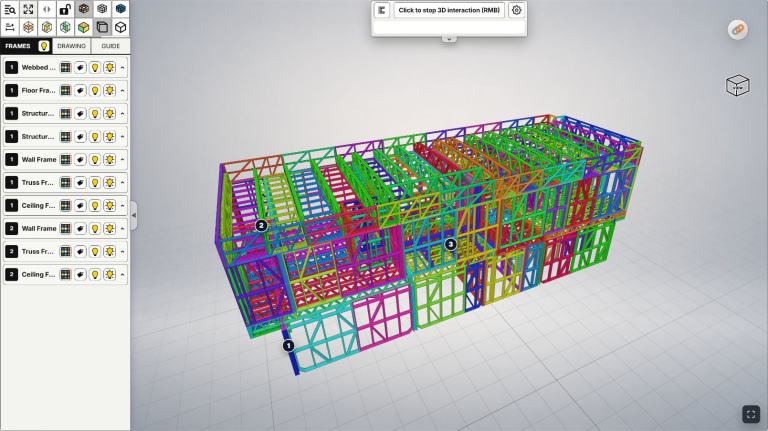
Open the correct project and model version, then select FRAMES when your view provides it. Read the storey number and group name before using its controls. Names such as Wall Frame, Floor Frame and Truss Frame depend on the model's content and organisation; not every IFC includes all these groups.
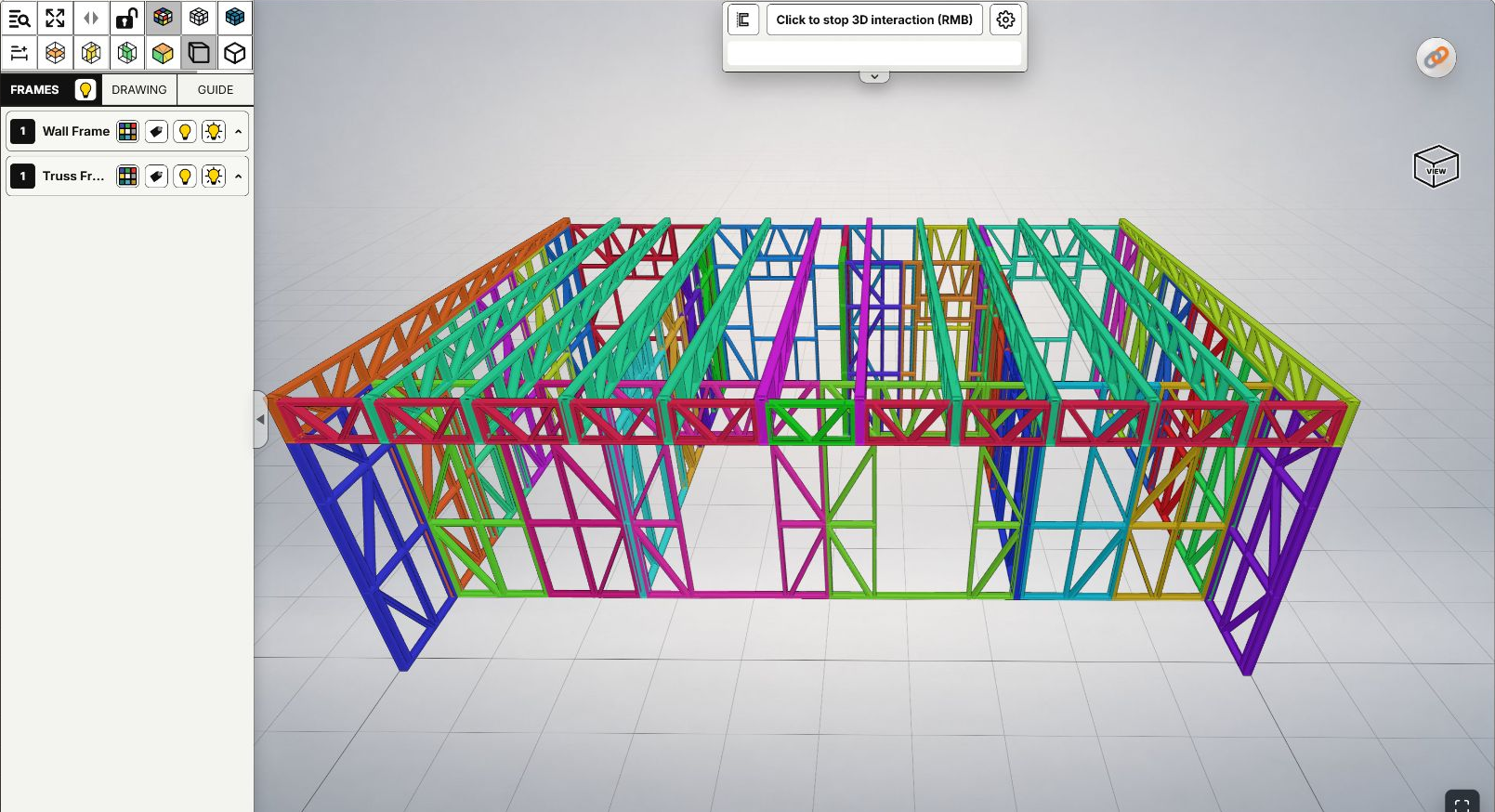
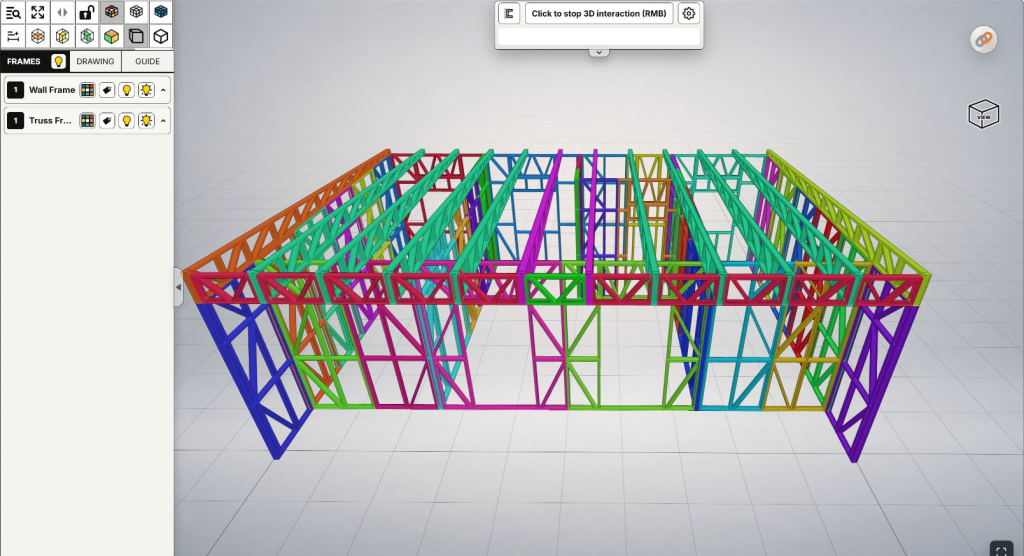
A real example with Wall Frame and Truss Frame, captured on October 29, 2026. Both groups are visible before changing the view.
For a specific frame, use the frame ID and 2D drawing guide to confirm its group. For navigation basics, see rotate, pan, zoom and Fit View.
The screenshots use an owner's Viewer. A simplified public preview may omit FRAMES and these tools; confirm the viewing context/access with the sender if yours differs. Making a model public is not required for this workflow.
Step 2: Hide, show or isolate a group
Hide a group that obstructs the view. Choose Hide this group on its header. For example, hide Truss Frame to see the wall framing underneath more clearly. Bring it back with Show this group in the same position; the command changes with its state.
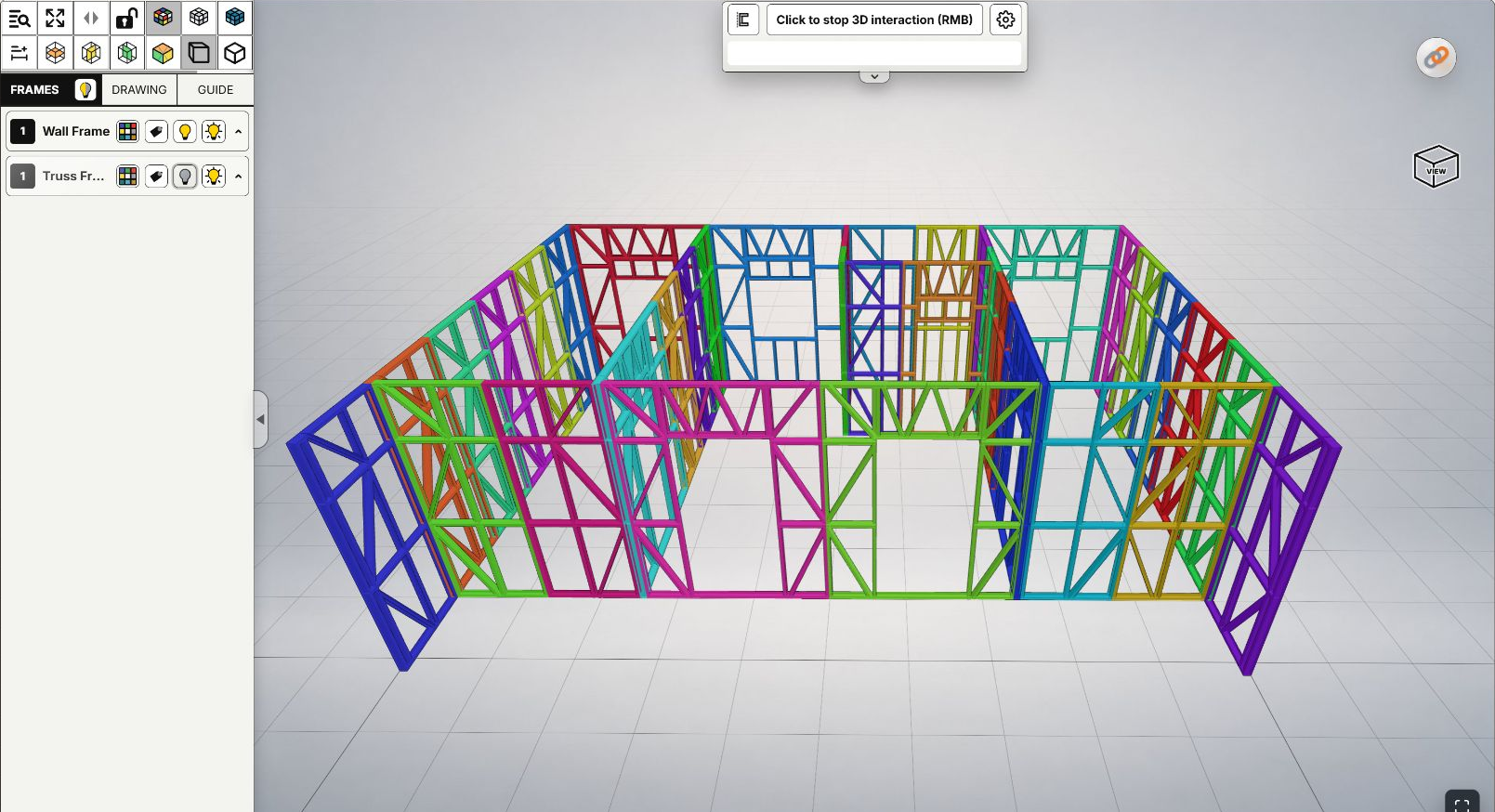
The same model after hiding Truss Frame. Roof framing is absent from the view while Wall Frame remains visible; no data has been deleted.
Isolate to inspect a group's own shape. Choose Isolate this group to remove other groups from the view. For example, keep only Truss Frame to understand the roof framing arrangement. When finished, choose Exit isolate, then check which groups need to be visible for the next task.
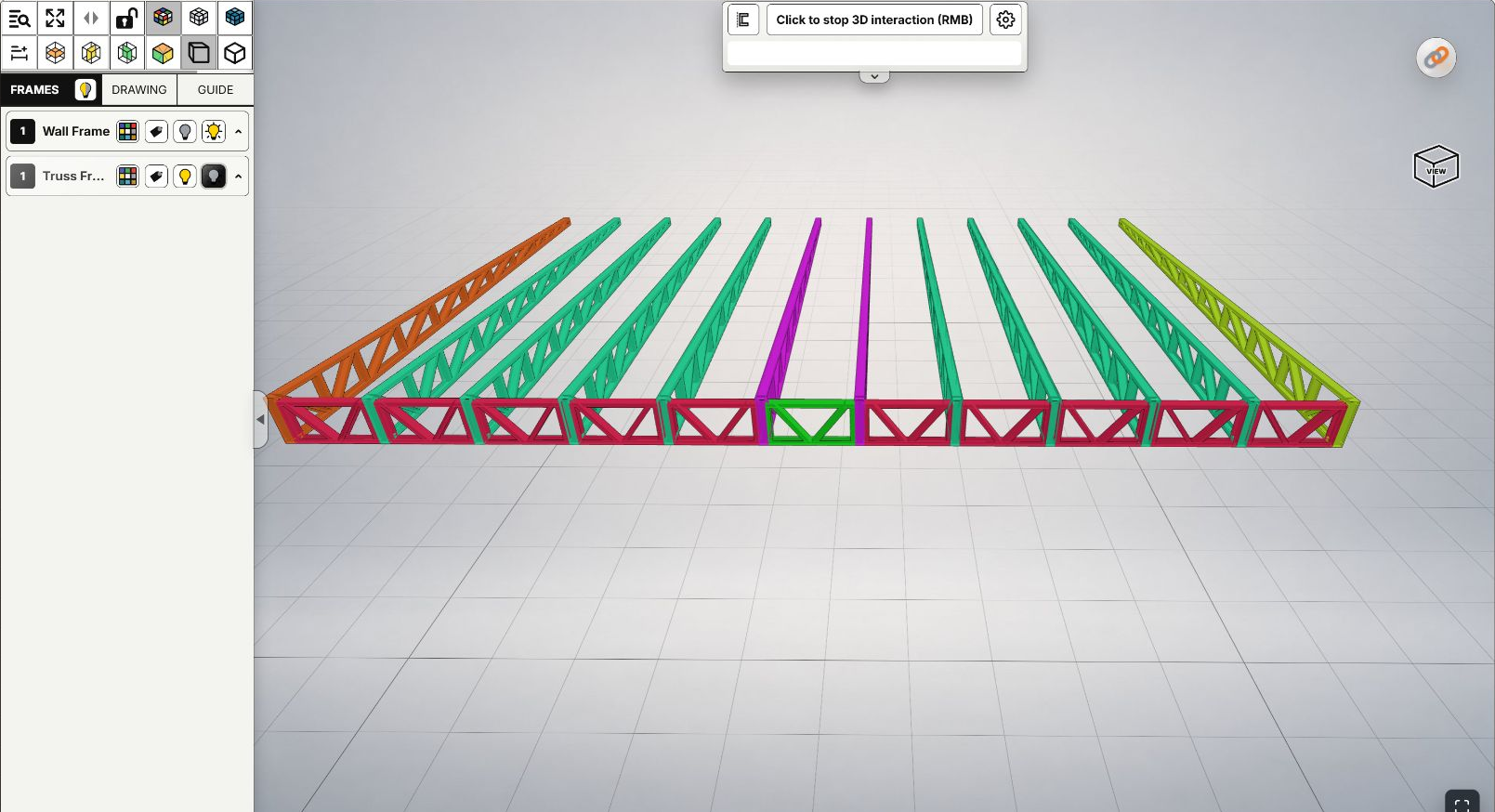
Truss Frame isolated in the real model. Walls are temporarily hidden, rather than missing from the model.
Show or hide names only when useful. Toggle frame tags helps when text obscures the geometry or you need IDs for a drawing comparison. Hiding names does not hide the frames. Showing only the labels relevant to the discussion can make a screenshot easier to read.
Step 3: Review a suspected conflict area
Isolating helps you understand one group, but comparing two groups requires both to be visible. Exit roof isolation and show the relevant wall group; you can keep unrelated groups hidden. Do not conclude that two objects do not intersect while one is hidden.
A practical review moves from the overview to the junction, looks from more than one angle and compares the view with the corresponding 2D drawing, dimensions and units. You may notice an apparent overlap, a member crossing an opening area or a roof-to-wall position needing clarification. You can only review content present in the open model; enabling a group does not add items that were never included in the IFC.
Record it as a suspected issue to check, with frame IDs, group/storey and revision. Two members overlapping in one perspective view do not alone prove a clash; a clear-looking angle does not prove the whole area is free of problems either. The controls in this guide do not automatically perform clash detection, connection checks or design approval.
Practical value for design, fabrication and site teams
| User | How to apply it |
|---|---|
| Engineers and designers | Inspect groups separately, then show neighbouring groups to review roof-to-wall or floor-to-opening relationships. Send the relevant IDs and view for a detailed check. |
| Fabrication teams | Focus on the group being discussed and show its IDs while comparing drawings, avoiding a similar-looking frame in another group. |
| Installation crews | Remove obstructions to understand location, orientation and adjoining frames, then use the view to discuss installation planning with the responsible person. |
| Managers | Focus a review on one area, then return to the overview so everyone understands where it belongs and which other groups need coordination. |
Reducing unnecessary groups and labels also makes a small site screen easier to read. A larger display is useful for reviewing many frames or dimensions; do not assume every viewing context on every device offers the same tools.
Step 4: Restore context and share a clear question
Exit Isolate if active, check the lightbulbs and use Show this group for groups you need to restore. Check frame names too if you changed label visibility. Fit View fits the model to the screen; it does not replace showing hidden groups.
 Fit View fits the model to the screen; it does not replace showing hidden groups.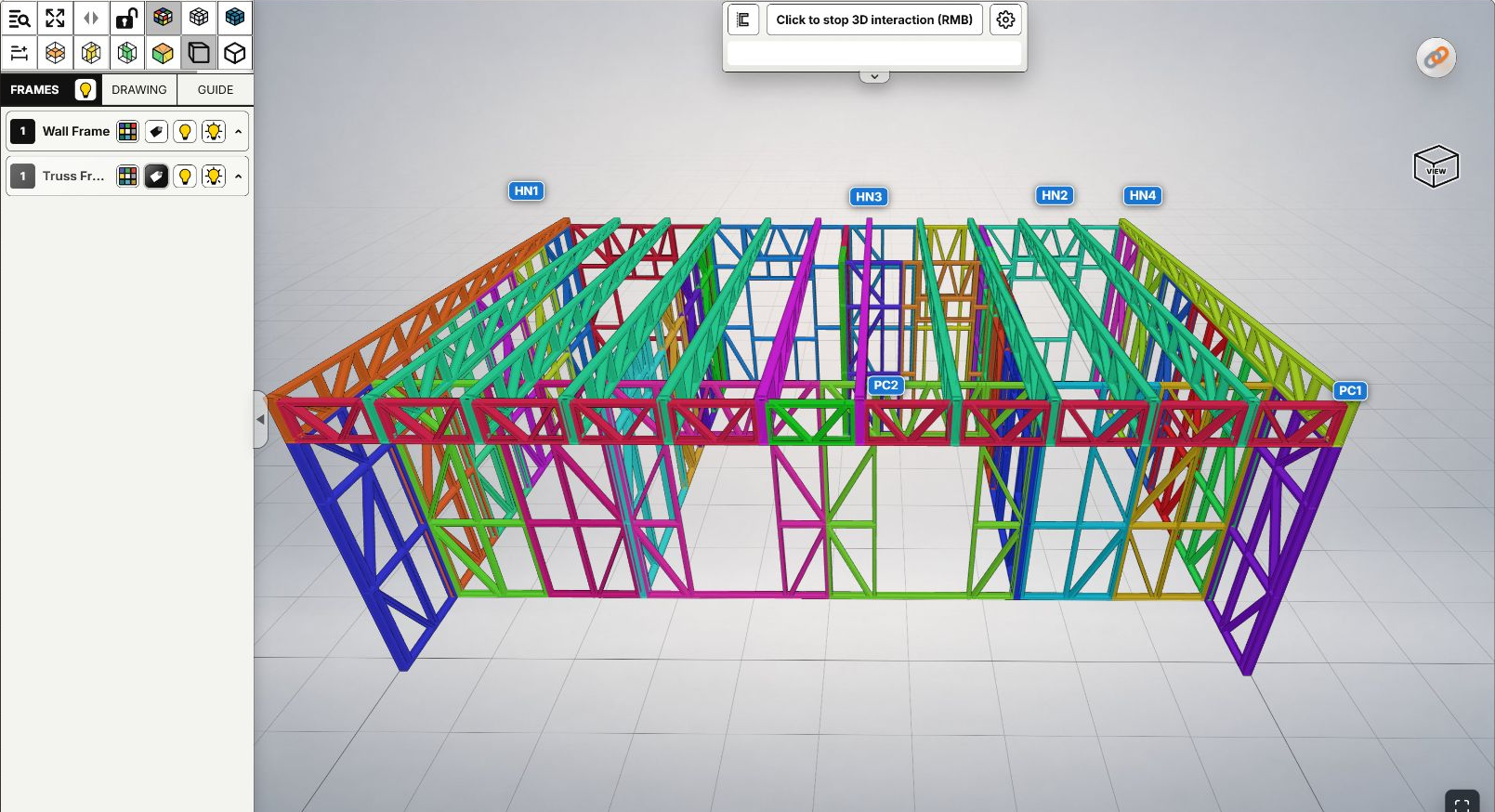
Both groups are visible again, with Truss Frame IDs such as HN1, HN2 and PC1. IDs connect the image with drawings; colours and visibility are not fabrication or installation progress states.
When sharing a suspected issue, include project/version — storey/group — frame ID — which groups are hidden — the question to resolve. Add an overview image when context helps; multiple screenshots are not always necessary. The recipient can then tell whether the image shows the complete model or a filtered part of it.
When part of the building disappears
- Check Hide/Show and Isolate before assuming the file is missing data.
- Distinguish frame tags from geometry visibility: missing text does not necessarily mean missing frames.
- If you used a cutting plane or crop box, check it separately; showing groups does not necessarily remove an active cut.
- If the view still differs from the documents, confirm the model/revision and grouping with the sender instead of editing or re-uploading because of one camera view.
Keep design data unchanged when your goal is simply to see more clearly. Use visibility and isolation to ask a precise question, then check the details against the right documents with the responsible team.