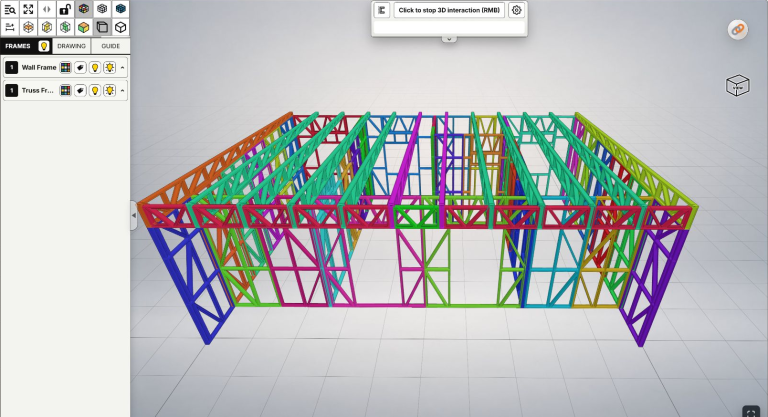
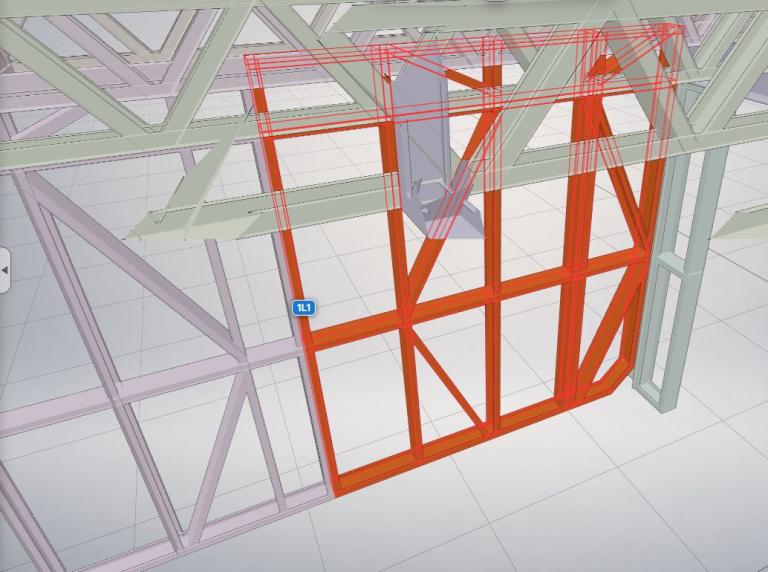
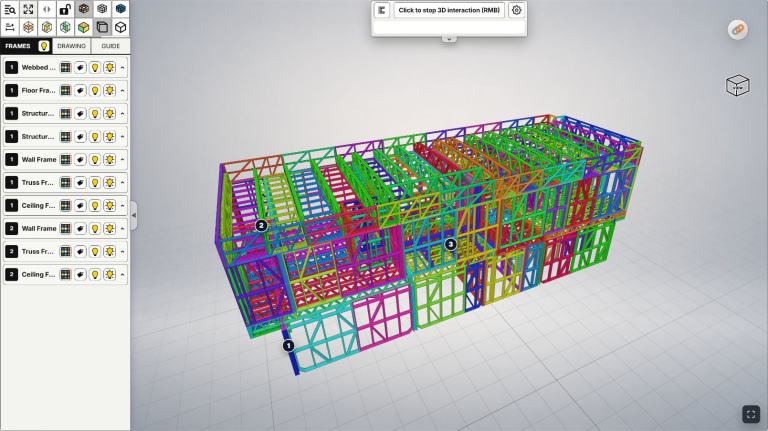
When you send several design options to a teammate or client, a list of filenames can make it easy to open the wrong model. A clear cover image helps the recipient recognize the project before entering the 3D view. Additional images can explain elevations, framing arrangements or construction progress. You do not need a large gallery: choose images that help answer the question you are discussing.
This guide demonstrates the process in LGSF Market: add images under Thumbnails, choose a cover with Set default thumbnail, then save and check the result. Control names follow the English interface.
Images are optional for Private/Lobby. You can upload and use an IFC model without adding photos. The gallery slots show capacity, not a requirement to fill every space. Market is outside this guide's scope.
Quick workflow
Open Thumbnails → Add images, if needed → Pin a cover image → Arrange, if needed → Save and check.
If the gallery already contains a suitable image, go straight to choosing the cover.
Watch the walkthrough
Watch: Upload Images & Choose a Model Thumbnail.
The video demonstrates adding images, selecting a thumbnail, reordering and removing unwanted images. The screenshots below show the actual interface captured on October 29, 2026.
Step 1: Open the Thumbnails area
Open the correct model's Properties from Model actions on its project card. Find Thumbnails below the large 3D preview. Check the model name and selected revision so you do not edit the images for a different design option.
 Properties from
  Model actions on its project card. Find Thumbnails below the large 3D preview. Check the model name and selected revision so you do not edit the images for a different design option.
If you do not have a model yet, start with the Upload IFC guide. For names and descriptions, see Edit properties.
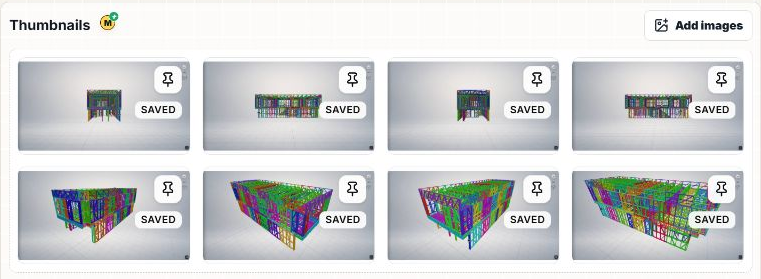
An existing model's gallery. Eight images in this example do not mean you need eight images for your own model.
Step 2: Add relevant images if needed
If you need new images, choose Add images to select them from your computer, or drag and drop them into the gallery. Wait for preparation and check that the intended images appear before continuing. Skip this step if the image you want is already there.
 Add images to select them from your computer, or drag and drop them into the gallery. Wait for preparation and check that the intended images appear before continuing. Skip this step if the image you want is already there.
The checked interface supports up to 8 gallery images, JPG/PNG, with a maximum of 10 MB per image. These limits reflect the date checked; always read the current form messages. If the gallery is full, review which images are useful rather than trying to exceed its capacity.
To choose images that remain useful at a small size:
- Use a recognizable overall view of the project or design option for the cover.
- Keep detailed views in the gallery when the recipient needs a closer look at a particular location.
- Use images of the correct project that you have permission to include. Do not use an attractive image from another option simply as a cover.
One clear overall image may be enough for identification. Additional pictures do not replace the 3D model when someone needs to inspect details.
Step 3: Choose a cover with the pin button
On the image you want, find the pin at the upper-right corner, labeled Set default thumbnail. Choose it to set the image used on project cards. The interface uses Default to identify that selection.
 Set default thumbnail. Choose it to set the image used on project cards. The interface uses Default to identify that selection.
Do not confuse an image's SAVED label with its selection as the cover: SAVED identifies an image already present in saved data. Use the pin when changing the cover; moving an image to the first position is not the same as choosing Default.
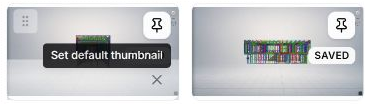
The pin tooltip and image toolbar are shown. No image was pinned or removed to make this screenshot.
The cover image differs from the large 3D preview. Pinning chooses the image for project cards; it does not replace the saved 3D preview above the gallery. Adjusting that preview's viewpoint and presentation belongs in the separate 3D SETTINGS workflow.
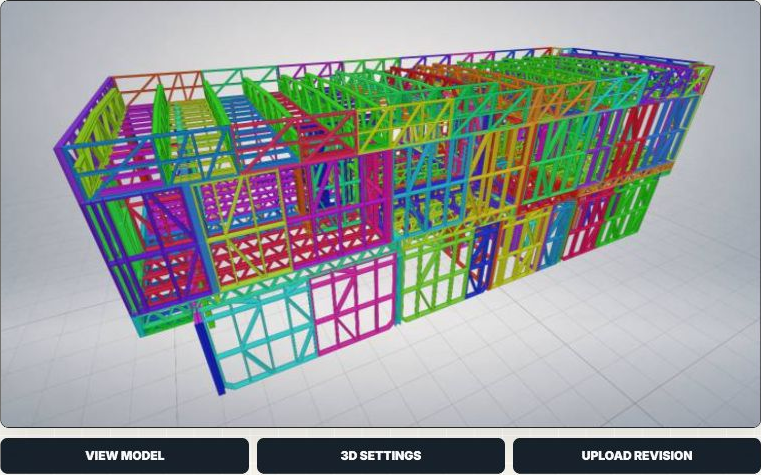
The 3D preview and gallery cover serve different display locations. Choosing a thumbnail does not change IFC geometry.
Step 4: Reorder or remove images if needed
This step is optional. To present an overall view followed by details, use an image's Drag to reorder handle to change its position, then review the sequence.
 Drag to reorder handle to change its position, then review the sequence.
Use Remove on an individual image if you no longer need it in this gallery. Distinguish this from Delete this upload at the bottom of the page: this guide concerns images and does not require deleting the model. If you remove the image intended as the cover, choose a suitable replacement and review it before saving.
 Remove on an individual image if you no longer need it in this gallery. Distinguish this from
  Delete this upload at the bottom of the page: this guide concerns images and does not require deleting the model. If you remove the image intended as the cover, choose a suitable replacement and review it before saving.
Leave the order and existing images alone if they already meet your needs.
Step 5: Save and check the result
After making the changes you need, choose Save in Properties and wait for the result. In the first-save workflow, the button may be named Publish. Check that Publishing path still matches your intended viewing scope; editing images does not require making the model public in the Lobby.
 Save in Properties and wait for the result. In the first-save workflow, the button may be named Publish. Check that Publishing path still matches your intended viewing scope; editing images does not require making the model public in the Lobby.
See Private vs Lobby if you need to understand who can see these images and the model presentation.
After a successful-save message, reopen Properties to check the images, order and Default selection. Review the project card wherever the model is already displayed to confirm the cover is recognizable at a small size. You do not need to change visibility just to inspect the image.
If an image cannot be added, read the format, size or image-count message. An image visible in the form is not confirmation that saving has succeeded. If the thumbnail changes while the large 3D preview stays the same, remember that these are different image types.
The task is complete when the gallery explains the model without unnecessary images, the cover identifies the correct option and your changes are saved. Return to Edit properties for project context, or find related videos on Tips.