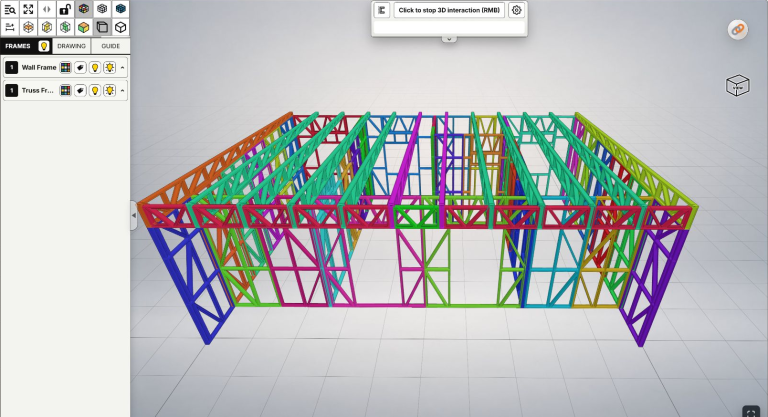
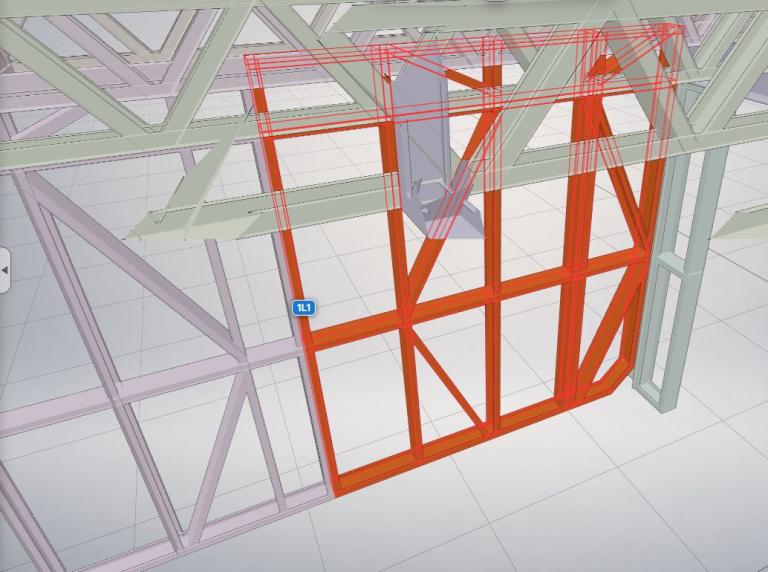
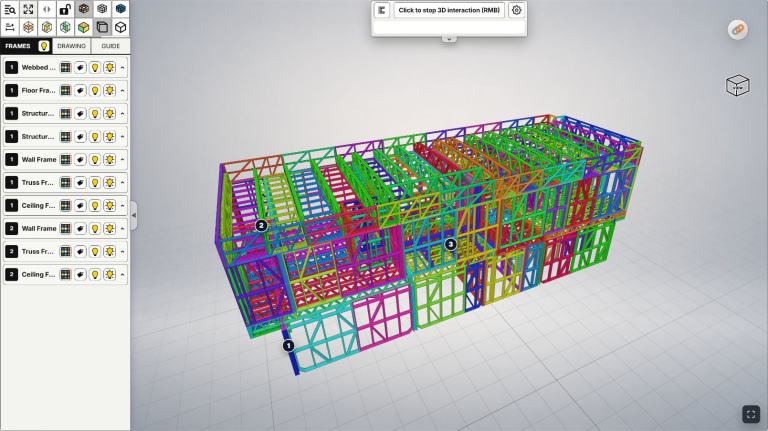
Edit properties lets you name an IFC model, add useful project information, review its images and check Private or Lobby preview before saving. This guide follows the current interface. The Market area is still in development and will have a separate guide.
When you handle several design options or send someone a model to review, an IFC filename may not explain the project or the intended review. A recognizable title and, when useful, a few lines of context help the recipient find the right model and understand what to inspect. You can start with the basics and add information as the project develops; you do not need to complete every field in one sitting.
You do not have to fill everything in: for the current Private/Lobby workflow, Title is required. Description, Design layout, Construction type, Classification, Design software and additional images are optional. Leave information you do not need blank. Review the selected Publishing path and change it only if you want a different viewing scope.
Quick workflow
Name and description → Project details, if useful → Images, if needed → Check visibility and save.
The short path is simply to name the model, check visibility and save. The optional steps help explain the model when you need them.
Watch the walkthrough
Watch: IFC Model Properties — Edit Details Before Publishing.
The video also introduces some Market fields. In the interface checked on October 29, 2026, that area is marked In development. You do not need to complete the Market section to follow this Private/Lobby guide.
Step 1: Open the correct model's properties
After processing an IFC in the upload workflow, open Edit properties. For an existing model, open your profile, find its model card, open Model actions, then choose Properties.
 Model actions, then choose
  Properties.
Check the name, preview and selected REVISION tab before editing. If you have the wrong model or revision, return to the correct one first. Uploading a new revision is outside this guide.
If you do not have a model yet, start with the Upload IFC guide.
Step 2: Name the model and add a description if needed
Title — required: use a name that identifies the project or design option. For example: “House — Option A — R02”. This is a naming example, not information about the model in the screenshots. Do not leave Title blank when saving.
Description — optional: add context if a recipient needs it. Briefly describe the model, revision and intended review. For example: “Framing model for Option A. For reviewing the first-floor frame arrangement; compare with the R02 design documents before use.” Only describe the actual scope of your project.
The toolbar provides headings, bold text, lists and links. Use them when they improve readability; a few clear sentences are often enough. You can add a description later if you do not need one now.
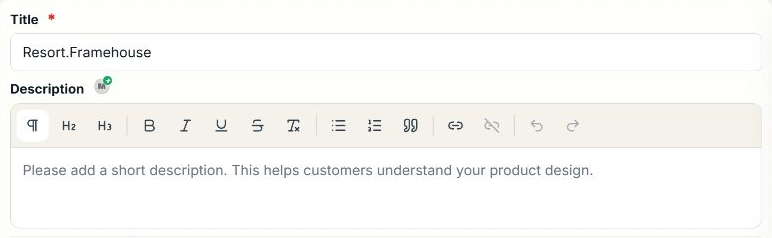
Actual interface captured on October 29, 2026: this example already has a Title, while Description is empty. It is not a template requiring every field to be completed.
Step 3: Add relevant project information
These groups are optional in the Private/Lobby workflow. Enter or select information you know and find useful; you do not have to select everything to continue.
| Group | When is it useful? |
|---|---|
| Design layout | When you want to describe bathrooms (BATH), bedrooms (BED), garage information, storeys (STOREY) and area (AREA). Leave items you do not need blank. |
| Construction type | Select a relevant building type, such as Residential or Commercial, if you want to add that context. |
| Classification | Choose a more specific classification that matches the project. Select Construction type first, then review the available classifications. Do not select extra categories simply to fill the form. |
| Design software | If known, identify the software that created the IFC. Use Other IFC source when it is not one of the listed options. A working preview alone does not identify the source software. |
When entering AREA, include both the value and unit, for example 120 m², or the actual unit used in your project documents. This communicates the area to readers; it does not convert units or change the IFC geometry.
The M markers identify Market requirements. They do not mean that every marked field is required to save a Private/Lobby model. Market is outside the scope of this guide.
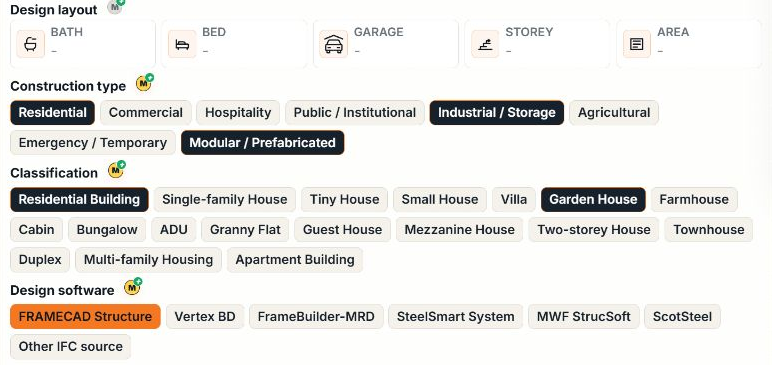
The selected options belong to an existing example model; they are not a recommended set for every project. The Design layout fields are empty and can be completed when useful.
Step 4: Review the preview and optional images
Use the preview to recognize the correct model. If you need design images or project photos, choose Add images under Thumbnails and check the format, count and size limits shown in the interface. Use relevant images that you have permission to include.
 Add images under Thumbnails and check the format, count and size limits shown in the interface. Use relevant images that you have permission to include.
Additional images are optional for Private/Lobby. An existing model preview does not mean images have been added to the gallery slots. The screenshot shows a model preview with an empty gallery. You do not need to fill all the slots.
See the image and cover guide to organize the gallery or change its thumbnail. 3D SETTINGS opens the 3D presentation workspace; you do not need it just to edit the name or description.
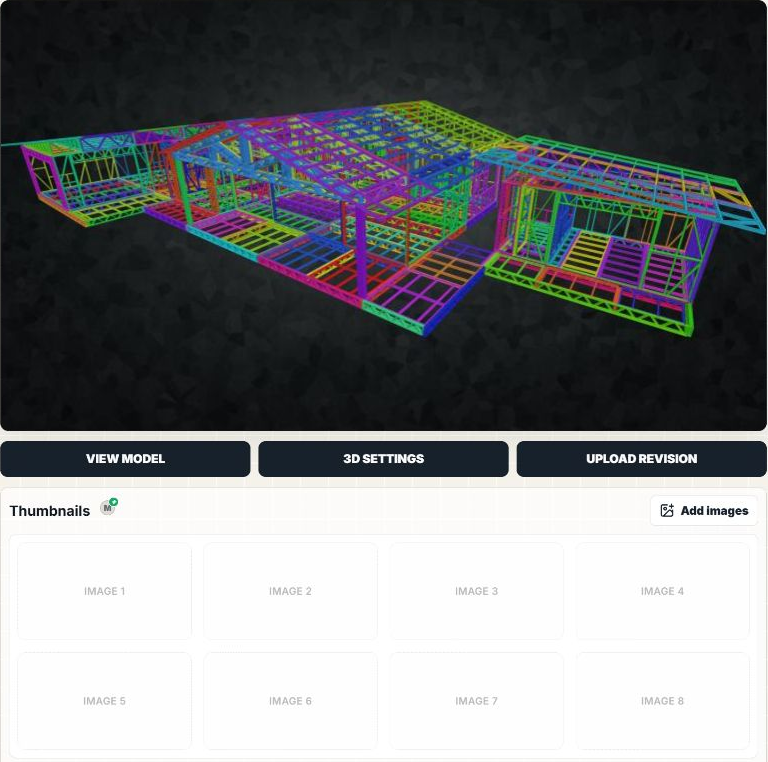
The model preview and gallery are separate areas. No gallery images have been added here, and the model was not changed to create this screenshot.
Step 5: Review the Publishing path and save
If you are unsure who can see the design or have concerns about the source file and existing links, read Private vs Lobby before deciding.
Read the selected Publishing path before saving. Keep the current choice if it already matches what you need:
- Private — Owner-only workspace: use the model owner's workspace. Check availability and any account-limit message shown in your own interface.
- Lobby preview — Rough public preview: choose this when you want a public Lobby preview and are ready to make that presentation public.
 Private — Owner-only workspace: use the model owner's workspace. Check availability and any account-limit message shown in your own interface.
 Lobby preview — Rough public preview: choose this when you want a public Lobby preview and are ready to make that presentation public.
For an existing model like the one shown, the bottom action is Save. After editing, choose Save and wait for the result. If an error appears, read and resolve it before leaving. In the first-save workflow, the action may be named Publish; always review Publishing path rather than inferring visibility from the button label alone.
 Save. After editing, choose Save and wait for the result. If an error appears, read and resolve it before leaving. In the first-save workflow, the action may be named Publish; always review Publishing path rather than inferring visibility from the button label alone.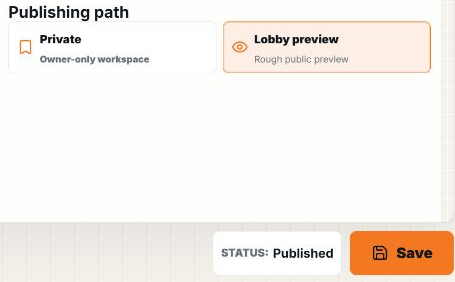
This example has Lobby preview selected and a Published status. It does not mean you must select Lobby to follow the guide.
Step 6: Check the saved result
After the interface reports a successful save, reopen Properties for the same model and check the title and fields you changed. Use VIEW MODEL to review its presentation. Background, display and other 3D adjustments belong in the separate Edit 3D settings guide when it is available.
If Save is unavailable, check Title first; do not fill every optional field just to try to enable it. Read any specific error if saving fails. Information still visible in the form is not confirmation that it has been saved.
You have completed this task when the name is correct, the information you need is saved and Publishing path matches your intended viewing scope. Market, revision uploads, detailed thumbnail selection and 3D settings are separate tasks. Find related videos on Tips.