A 2D drawing may fully dimension a wall frame while the installer still needs to understand where it belongs, which way it faces and what connects beside it. An engineer needs to explain an opening; the fabrication team needs to identify the frame being discussed; a manager needs to locate the area in a site report. A clear 3D view gives everyone a common reference instead of relying on “the frame on the other side”.
This guide uses LGSF Market to demonstrate viewing an IFC model in a browser, with a focus on light gauge steel / cold-formed steel (LGS/CFS) projects. Rotate, pan, zoom and Fit View take you from the building overview to the area you need to discuss, ready to compare with the current 2D drawing. Navigation changes the camera view, not member dimensions.
Quick workflow
Open the correct model and revision → Rotate, pan and zoom to the area → Use Fit View to recover the overview → Compare with the drawing and discuss the location.
You do not need to activate every tool or change settings to start viewing. If an overview answers your question, you can stop once the model fits the screen.
Video and mouse controls
Watch: 3D Viewer Mouse Controls — Rotate, Pan, Zoom & Fit View.
| What do you need? | Mouse action | An LGS/CFS review example |
|---|---|---|
| Rotate / Orbit | Hold the left mouse button and drag in the model area. | Look at a wall corner from another side to understand frame orientation and openings. |
| Pan | Hold the right mouse button and drag. | Bring the next area into the centre without rotating the building. |
| Zoom | Scroll the mouse wheel. | Move between a whole-storey overview and the framing area being discussed. |
| Fit View | Double-click the middle mouse button, or use Fit model view when your toolbar includes it. | Recover the overview after zooming too far or moving the model out of sight. |
 Fit model view when your toolbar includes it.
Keep the pointer inside the model area. Dragging over a frame list, form or page scrollbar affects that part of the interface. A single left click may select an object, so distinguish clicking from holding and dragging.
Step 1: Open the correct model
Open a viewing link you are allowed to use, or open your model from your profile. If you do not have a browser preview yet, start with the IFC upload guide. Wait for the model to appear, then confirm the project and revision with the sender.
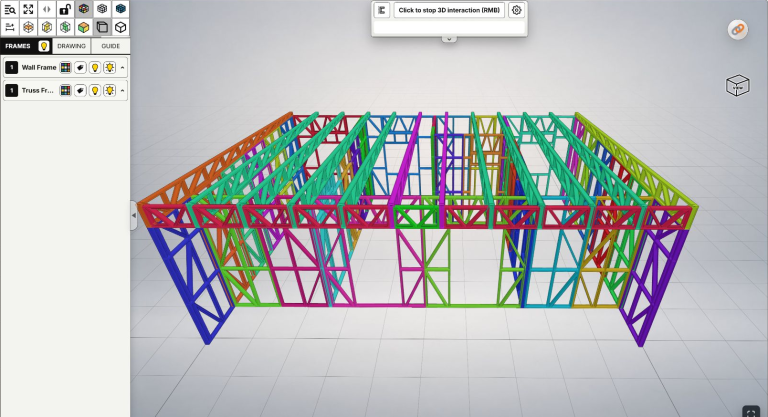
Before focusing on details, establish the building context: the side you are viewing, the storey and the area under discussion. Use Fit View if the model is too small or off-screen. Enter full screen is an optional way to gain viewing space, not a required step.
 Enter full screen is an optional way to gain viewing space, not a required step.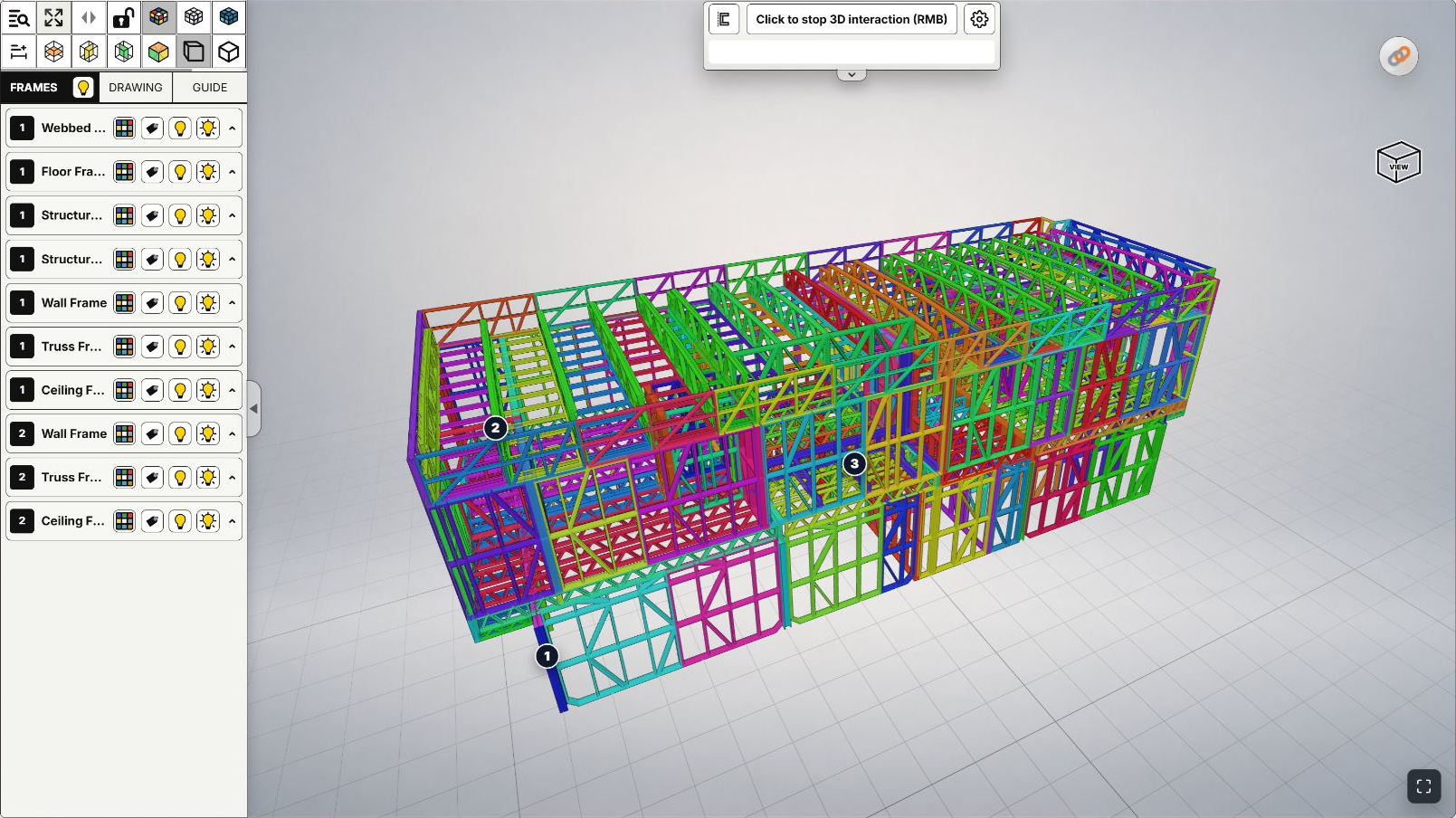
A real LGS/CFS model in the interface captured on October 29, 2026. Start with the building overview before zooming into a local area.
The screenshots show desktop views. A public preview, a separately granted link and the owner's workspace can offer different tools. You do not need editing access to use the basic viewing controls provided in your view; see Private and Lobby for viewing scope.
Step 2: Rotate, pan and zoom
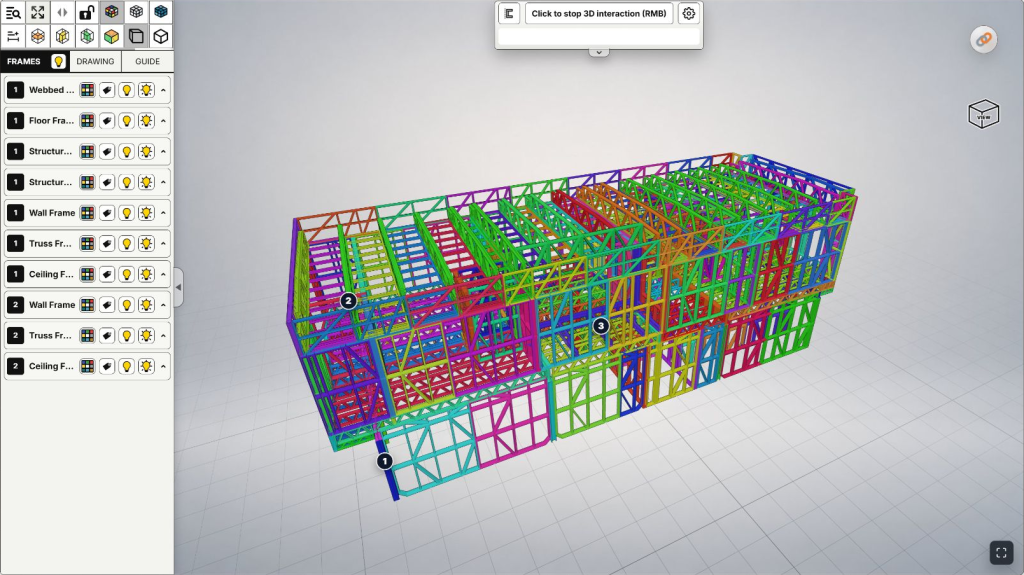
Rotate to understand position. Hold the left mouse button and drag a short distance. When discussing a corner or door opening, another angle helps explain how the frame relates to its neighbours. Avoid turning continuously until you lose your orientation; recover the overview when needed.
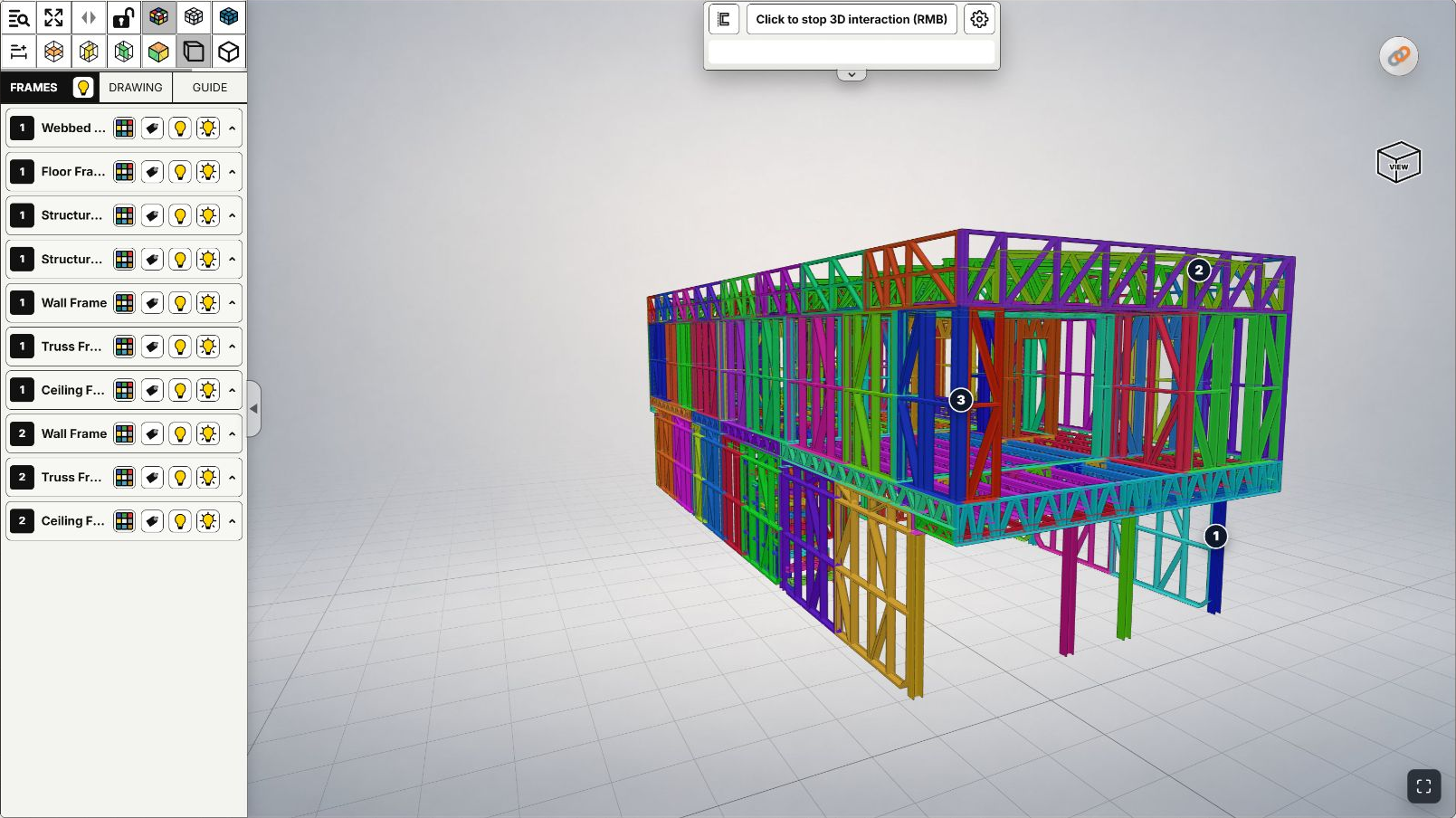
Another view of the same model after orbiting. This does not rotate or edit the building geometry in the design data.
Pan to centre the area. Hold the right mouse button and drag to shift the view. Once you have a useful angle on a wall run, pan to the next bay without having to rotate the building again.
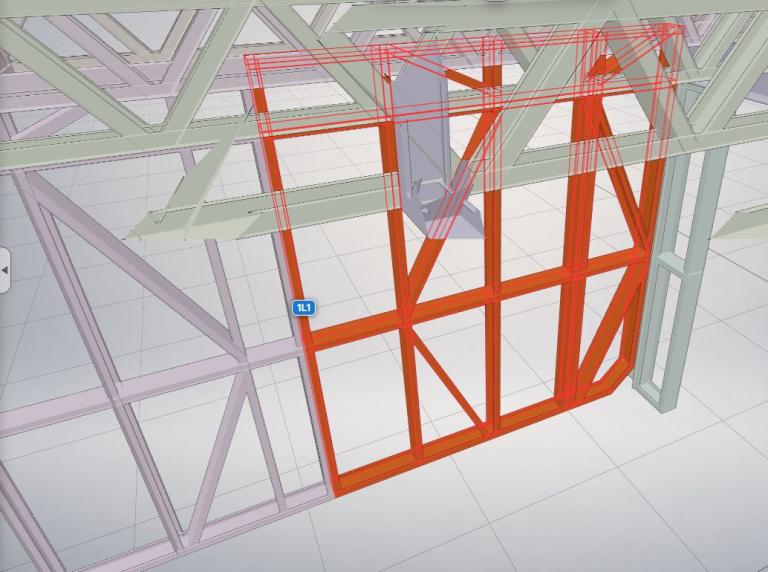
Zoom in, then step back. Scroll in small increments until the area is clear. Closely spaced steel members and frames are easier to distinguish up close; zooming out restores their relationship to the storey. Combining pan and zoom is often easier to follow than repeatedly enlarging the view.
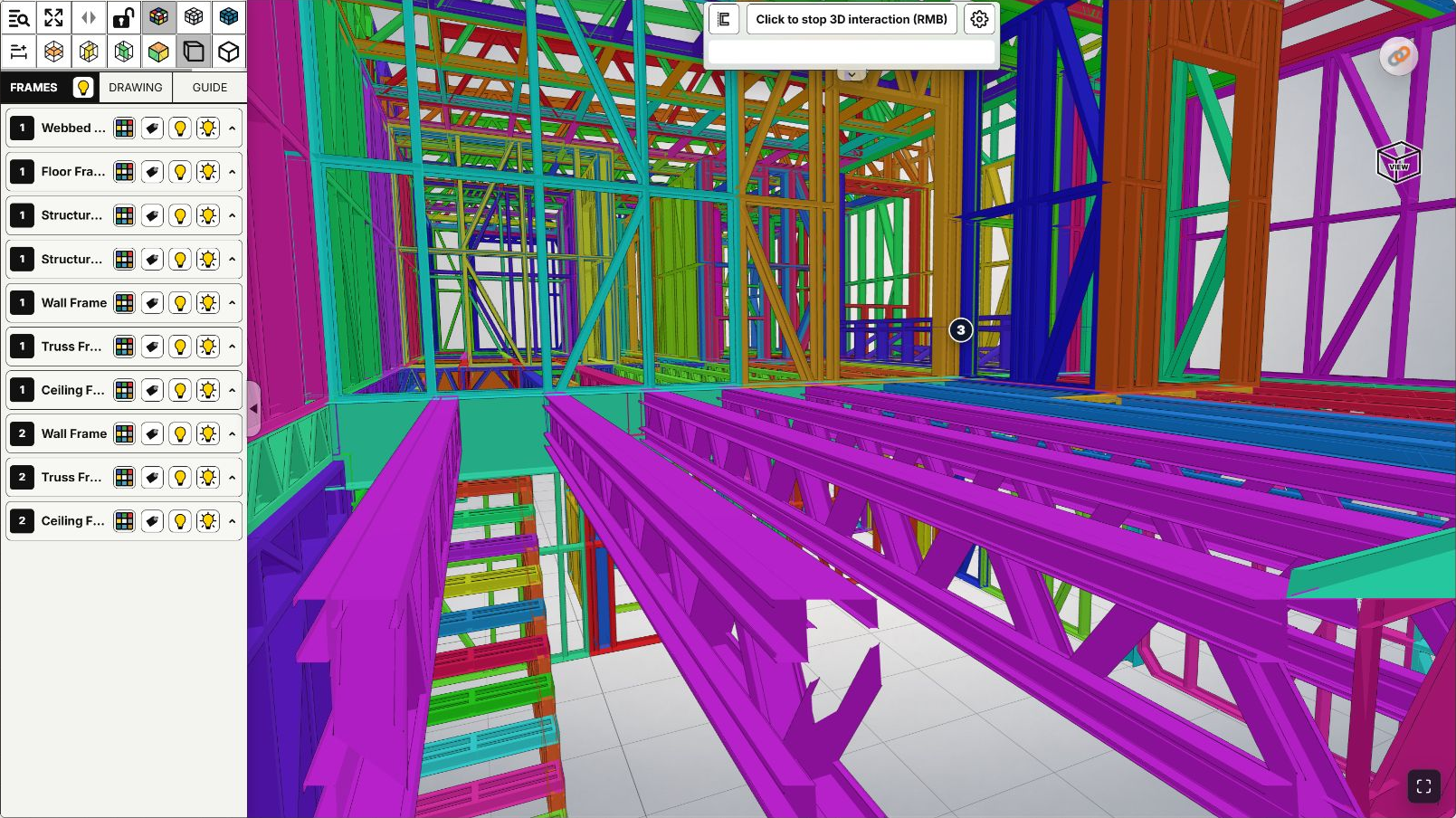
A closer view for discussing a framing area. Use the corresponding drawing dimensions and frame reference to confirm details; do not infer dimensions from a perspective screenshot.
Step 3: Return to an overview with Fit View
If the model moves off-screen or you zoom too close or too far out, return the pointer to the 3D area and double-click the middle mouse button. In a workspace with the toolbar, you can also use Fit model view. It fits the model to the viewing area rather than changing its actual scale or dimensions.
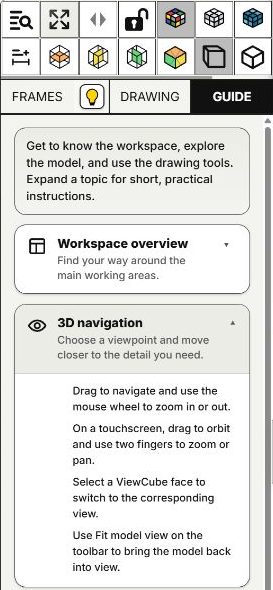
Fit model view is the four-arrow icon, second in the top toolbar row; the Guide below explains its use. Interface captured on October 29, 2026. A simplified public preview may omit this button.
After fitting, locate the area again and zoom back in. If you previously hid groups or enabled a cutting tool, review those controls separately: Fit View does not mean hidden groups and cuts have all been reset. The dedicated Fit View video also demonstrates recovering the view.
Step 4: Connect the 3D view with 2D drawings
A useful handover between design, fabrication and site teams keeps four references together: area/storey — frame ID when available — drawing and revision — the question to resolve. Use 3D to establish location and the corresponding drawing for dimensions and details. If your view includes frame labels, use the reference to distinguish similar-looking frames. Follow the frame ID and 2D drawing guide for the steps.
For example, an installation crew asks which way a wall frame beside a doorway should face. The engineer opens the correct model, starts with the overview, rotates towards the wall and zooms to a useful distance. A screenshot sent with the frame ID, drawing/revision and a specific question gives the fabrication team the same reference, rather than leaving them to interpret an image cropped out of context.
For progress discussions, the model helps identify the work area being reported. A frame appearing in an IFC does not itself prove it has been fabricated, delivered or installed; display colours are not automatically progress states. Compare the view with reports, site photos and confirmation from the responsible person. When something differs, identify the location and version to check rather than drawing a conclusion from the 3D angle alone.
Viewing on a computer, tablet or phone
A browser link lets recipients reach the model without installing design software just to view it. A computer's larger screen and mouse are useful for reviewing several frames, keeping a drawing alongside the model or discussing details remotely. On site, a phone or tablet is useful for reopening the location under discussion. Choose the device for the task; do not assume every screen has the same space or tool set.
The Viewer's Guide describes touch navigation as dragging with one finger to orbit, and using two fingers to zoom or pan inside the model area. Use Fit model view to recover your orientation when your view provides that button. Open the approved 2D drawing in a suitable app or window for comparison; fitting both 2D and 3D side by side on a small screen is not a requirement.
When navigation does not do what you expect
- Scrolling moves the page: put the pointer back inside the 3D area before zooming.
- Dragging produces a label or highlight: distinguish object selection from camera movement. In a workspace with an active interaction, right-click in the 3D area to stop it as instructed; right-clicking a frame label may open that label's menu.
- Fit View still does not reveal the area: check loading, any hidden groups or cuts you used. Fit does not add data missing from the file.
- Labels, drawings or tools differ from the video: check your viewing context and granted access. A visible 3D model does not itself grant the owner's complete tool set.
The first goal is a shared understanding of the building, location and revision. Once navigation is comfortable, finding the correct frame ID can connect a site question to the drawing and the design team.