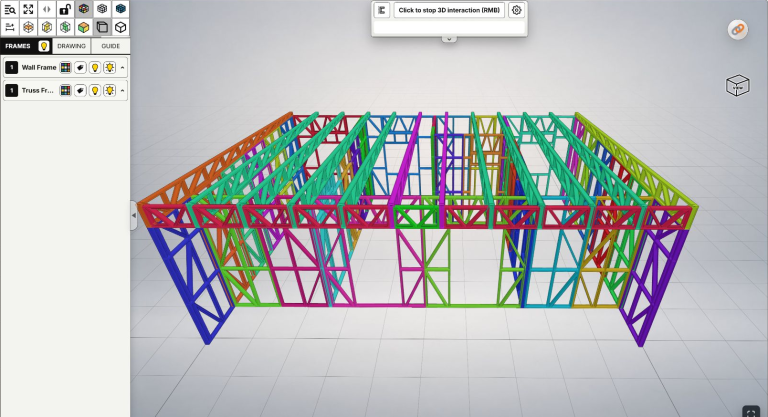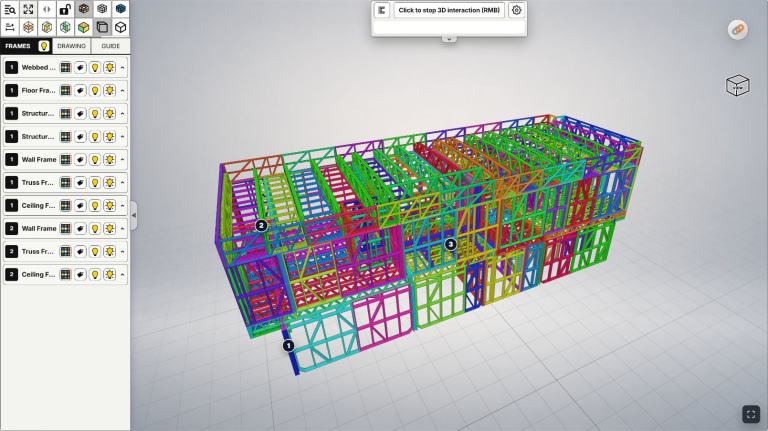
An installation crew sends a frame ID from a pack label or drawing and asks where it belongs. A cropped wall image can lead the engineer or fabrication team to a similar-looking frame, while the ID alone may not explain its orientation or neighbours. Connecting the correct frame ID, its 3D location and its drawing gives everyone the same reference before discussing details.
This guide uses LGSF Market to find a frame in an IFC model for light gauge steel / cold-formed steel (LGS/CFS) construction, then open its 2D drawing when the model and your viewing access support it. The real example is 1L1 in LOT10-ASHBURY. Your project's naming can differ; use the reference on your documents and confirm it with the sender.
Quick workflow
Confirm the model and ID → Search and choose the correct label → Confirm its 3D location → Open Frame Detail and compare.
If you only need the location, stop at the 3D view. Opening the drawing is the next step for a detail check; exporting PDF, editing and generating CNC data are not required.
Prepare the model and frame ID
Open a viewing link you are allowed to use. Confirm the project, model version and drawing revision with the team sending the information. Copy the complete frame ID, including prefixes and final digits. A storey, area or group reference helps distinguish similar names.
The illustrated workflow uses a Viewer with FRAMES, Search frames and DRAWING. A simplified public preview may offer only 3D; a viewing link does not automatically grant the owner's complete tools. If these controls are missing, ask the sender to confirm the viewing context and access you need. Making the model public is not a requirement. See Private and Lobby for viewing scope.
If navigation is unfamiliar, start with rotate, pan, zoom and Fit View.
Video: find frames by name
Watch: Find Frames by Name in 3D — LGS/CFS Site & Drawing Checks.
The video covers frame-name search, location and similar or repeated labels. The steps below add the current DRAWING route to a frame detail. Finding a label does not require renaming or deleting frames.
Step 1: Search for the frame ID
Select Search frames on the Viewer toolbar, then type or paste the ID into find Frame. Read the entire reference in the results before selecting it.
 Search frames on the Viewer toolbar, then type or paste the ID into find Frame. Read the entire reference in the results before selecting it.
The find Frame input before entering an ID, captured on October 29, 2026. Type or paste the complete reference, then read the result names carefully.
Several text matches do not mean they are all the same frame or prove that the model contains duplicates. 1L1 and 1L10 are different names. If several frames have exactly the same name, check the storey/group, location and source design before deciding that anything needs correction.
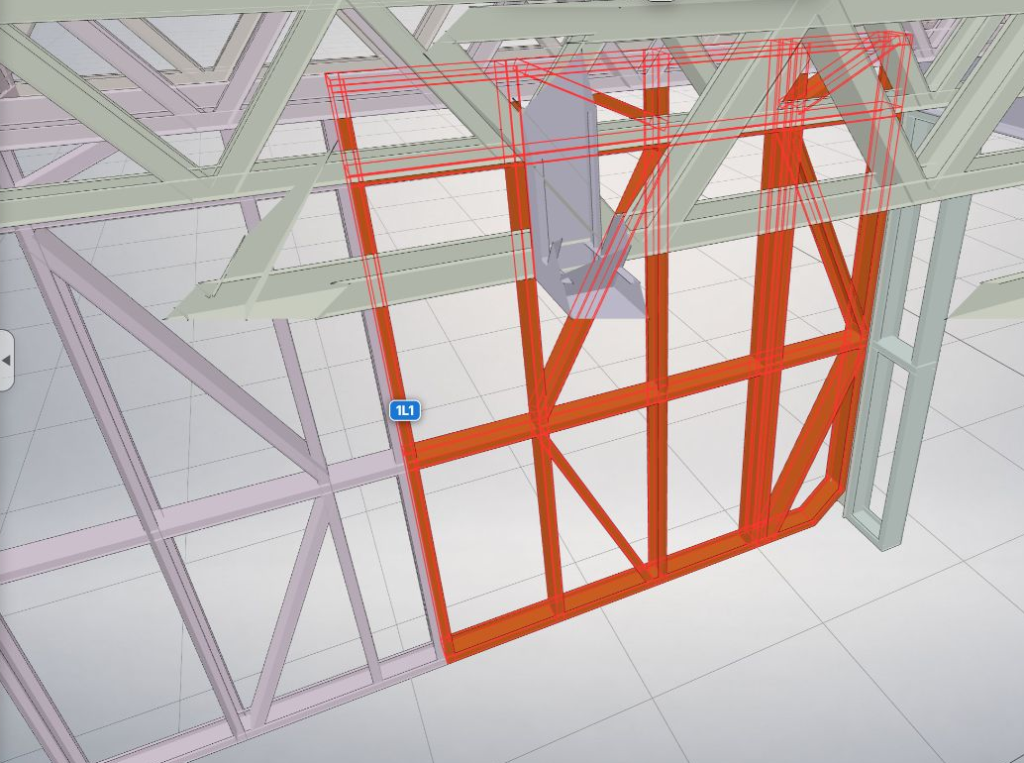
Choose the matching result to find the corresponding label. To inspect it in the list, open FRAMES, expand its group and select that label. In this example, 1L1 belongs to STORY 1 Wall Frame; this is the example model's group, not a mandatory naming convention for every IFC.
Step 2: Confirm the frame in 3D
Select the frame label in FRAMES and observe the Viewer's highlighting/location response. Check the storey, building side and neighbouring frames against the question you received. Do not rely only on display colour or a single frame's shape.
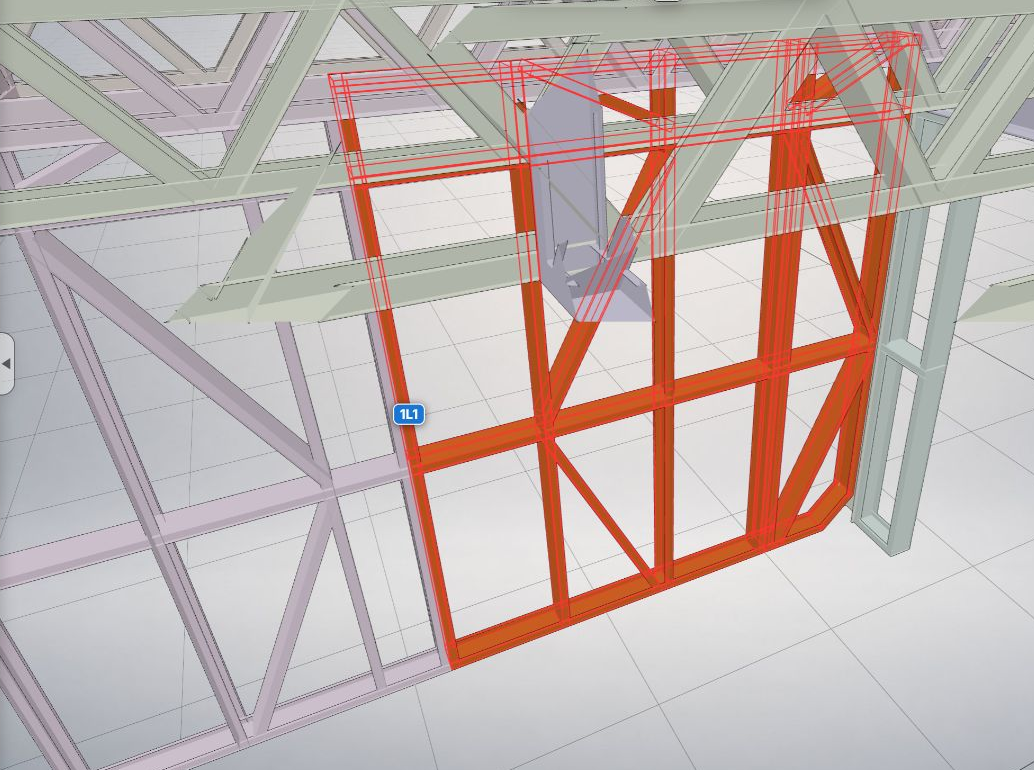
The selected 1L1 in a real model. Its label and surroundings establish context; selection effects are not fabrication or installation status.
Rotate or step back if you need to understand the frame's relationship to the building. Fit View helps recover your orientation. If the question is simply “where does this frame belong?”, a screenshot showing both ID and context can be enough; editing tools are not needed.
 Fit View helps recover your orientation. If the question is simply “where does this frame belong?”, a screenshot showing both ID and context can be enough; editing tools are not needed.
If other groups obscure the location, use hide/show and group isolation for a clearer view, then restore the groups needed for comparison.
Step 3: Open the correct frame drawing
Switch to DRAWING. Paste the ID into Search Drawing tree, then choose the exact FRAME DETAIL result, such as FRAME DETAIL 1L1 — DETAILS. Distinguish an individual frame detail from 2D Group Plans or 3D Group Plans for an entire group.
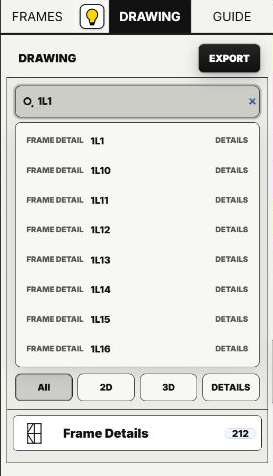
The drawing tree captured on October 29, 2026. Check the full ID: 1L1 and 1L10 can appear together.
Wait for the drawing to finish rendering, then read its title and group. The example shows 2D Frame Drawing 1L1 in STORY 1 Wall Frame, with FRAME NAME 1L1 at the bottom. These references help confirm you have not moved to a neighbouring frame.
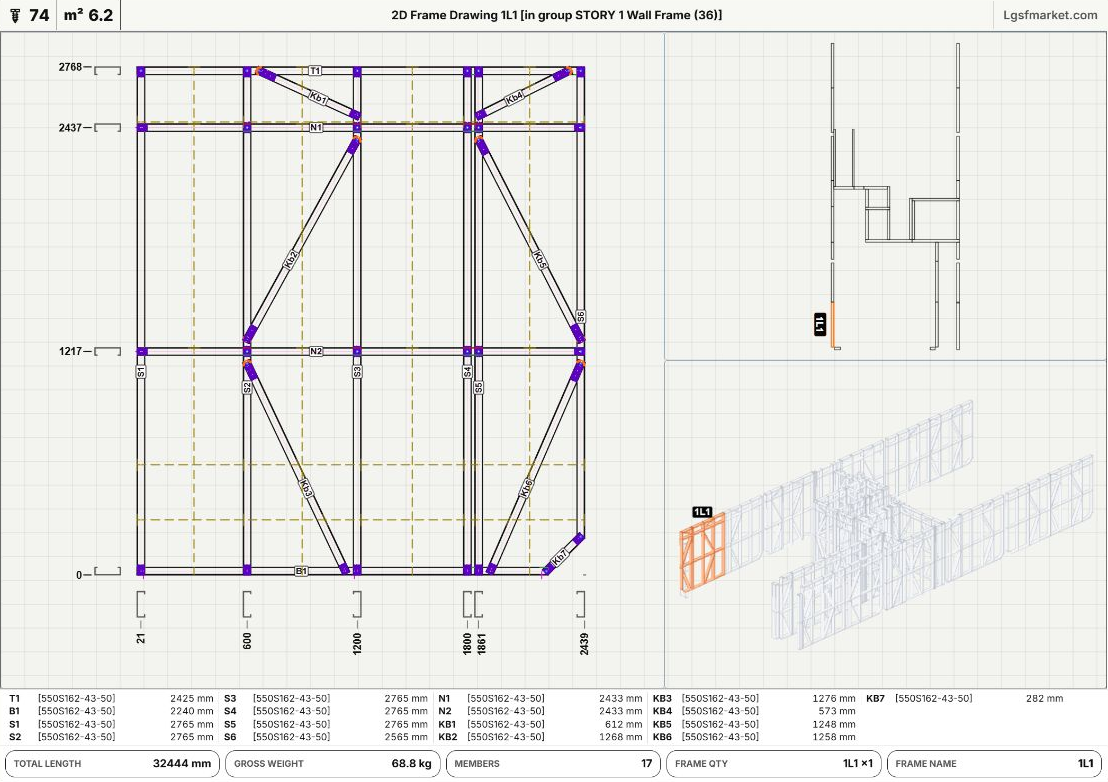
The real 1L1 drawing rendered and captured on October 29, 2026. Geometry, labels, group position and displayed units belong to this example model, not every project.
A frame ID differs from a member ID. 1L1 identifies the frame being checked; labels such as S1, T1 and B1 inside the drawing identify its members. When fabrication asks about a member, include its frame ID rather than sending “S1” without explaining which frame it belongs to.
Step 4: Compare and send a clear question
Compare the Viewer drawing with the documents being used: frame ID and group, viewing direction, dimensions and units, openings where present, and the members in question. The Viewer drawing comes from the model currently open; it does not automatically replace an approved issue or confirm that every drawing revision used on site matches it.
A concise message can follow “Project … / model version … / drawing-revision … / frame … / area-storey … / please confirm …”. A 3D location screenshot and a 2D detail screenshot are useful optional additions when needed. You do not have to send every image or all project information.
For installers, this identifies the location they need to discuss. For fabrication, the frame and member references identify the relevant work. For engineers and managers, a common reference makes questions and replies easier to follow without interpreting an image out of context. Confirming fabrication or installation progress still requires an actual report from the responsible team; a frame's presence in the model does not prove completion.
If the frame or drawing is unavailable
- No matching result: check characters, spaces, prefixes, project and revision. Ask whether the ID belongs to this model; one unsuccessful search does not prove a frame was deleted.
- Several similar results: read the full name, then check storey/group and location. Do not rename or delete data simply to shorten the list.
- 3D is visible but labels or DRAWING are missing: tools depend on IFC content, model recognition and the viewing context/access provided. Ask the owner to check those conditions before re-uploading.
- The drawing is still rendering: wait and read any message; an empty loading area is not proof that frame data is missing.
- Viewing works but PDF/CNC download does not: viewing and exporting are separate permissions. This workflow only needs opening and comparing, not file export.
The screenshots and steps use a desktop for legible IDs and details. On site, use a suitable device to open the view you have been granted; on a small screen, prioritise confirming the ID/location and use a larger display when reviewing many dimensions.