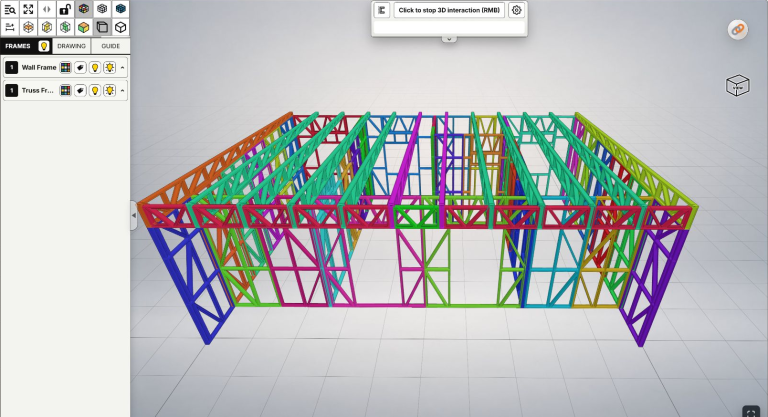
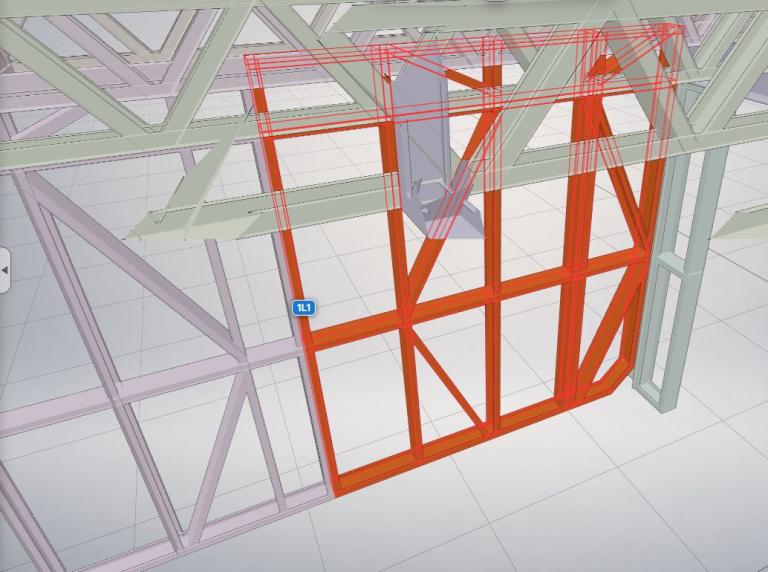
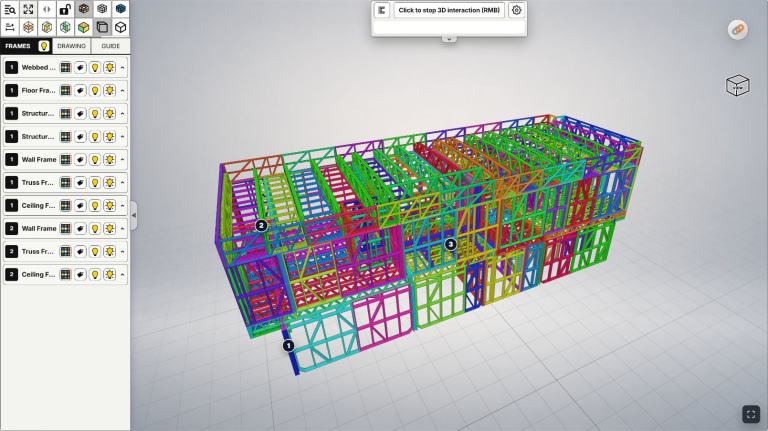
To start viewing an LGS/CFS model in LGSF Market, select an IFC file from your computer and let the upload workflow prepare a preview. This guide covers file preparation, the upload steps and reviewing the resulting 3D preview.
When you need a teammate or client to review a framing arrangement, a browser preview helps them approach the model without starting in the original design software. Upload brings the intended IFC into that viewing and processing workflow. Choose the revision you want to discuss so the recipient does not review the wrong design option.
Quick workflow
Prepare the file → Select the IFC → Read the terms and process → Review the preview.
Images are optional; skip them if you only need to upload the IFC model.
Before you start
Use an IFC file you own or have permission to upload. For your first attempt, choose a model you know so you can compare the preview with the original design.
Check the file-size limit and Monthly uploads information on the upload page. Allowances depend on your account and current policy. Use the limits displayed in your workspace rather than a fixed number from an older video.
Sign in before uploading if you want to keep and manage the model in your member workspace. A guest preview and a saved member model are different contexts. Creating an account afterward does not automatically move an existing guest preview into that account.
Watch the walkthrough
Watch: How to Upload an IFC File to LGSFMarket.
The written steps below cover the workflow without requiring you to play the video. Control names follow the English labels shown in the demonstration.
Step 1: Open the model upload page
Open LGSF Market and find the model upload action. The video demonstrates Upload IFC model on the homepage and UPLOAD at the top right.
 UPLOAD at the top right.
Before choosing a file, check whether you are using a guest preview or your signed-in workspace. This helps you understand where to find the model after processing finishes.
Step 2: Select your IFC file
Choose Add IFC to select a file from your computer, or drag it into the upload area. Upload one IFC file at a time.
 Add IFC to select a file from your computer, or drag it into the upload area. Upload one IFC file at a time.
Check the filename and revision before proceeding. Replace the file if you selected the wrong version. Keep the original IFC in your project storage so you can compare it with the preview later.
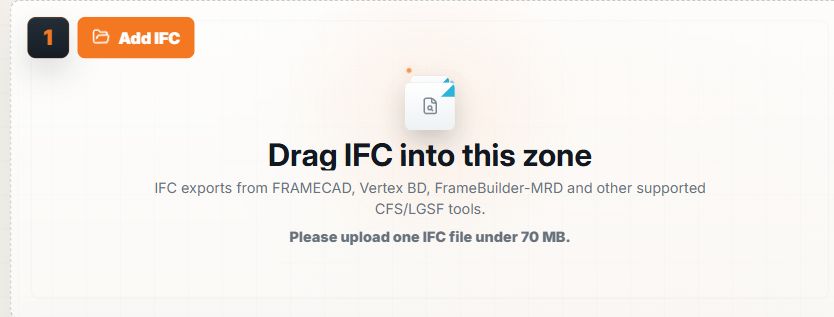
Captured on October 29, 2026. The size shown is an example from the account used for this screenshot; check the current limit displayed for your own account.
Step 3: Add optional images
Use Add images to include design previews or construction photos. Images are optional; you do not need them just to upload an IFC.
 Add images to include design previews or construction photos. Images are optional; you do not need them just to upload an IFC.
Check the accepted formats, image count and size limits shown on the page. Choose images that match the project and that you have permission to use. See the image and cover guide to organize the gallery after uploading.
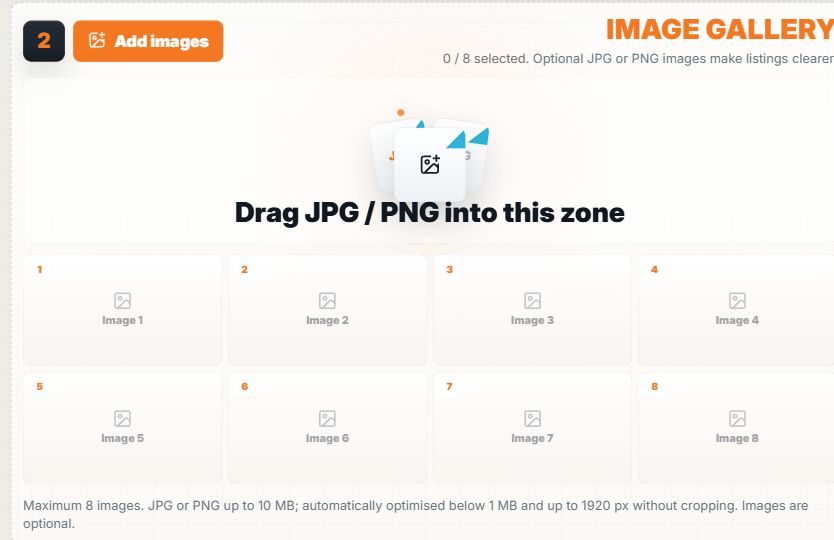
You can leave the image area empty when you only need to upload the IFC. No file or images have been selected in this screenshot.
Step 4: Read the terms and process the file
Read Upload Terms, then choose Agree and process when ready. Keep the page open while the model is analyzed.
 Agree and process when ready. Keep the page open while the model is analyzed.
Without an IFC selected, Agree and process remains disabled, as shown below. Select the IFC first; adding images does not replace the required model file.
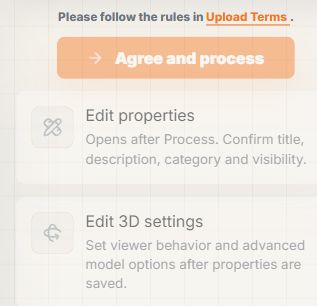
Before file selection: Edit properties opens after Process, followed by Edit 3D settings after the properties are saved.
Wait for processing to finish and read any warning before continuing. Selecting a file alone does not mean that the model has been processed successfully.
Step 5: Review the processing result
Check that the preview shows the intended model and the areas you need to inspect. A successful 3D preview does not guarantee that the IFC contains all frame or member information required by every drawing or output tool.
This completes the file-selection and processing workflow covered in this upload guide. Continue with the Edit properties guide to update the name, add useful details and review visibility. Edit 3D settings will be covered separately.
If the upload does not work
- File-size or allowance warning: compare the message with the limits shown for your account.
- Wrong revision selected: check the filename and replace the file before submitting it.
- Geometry is visible but frame information is missing: review the IFC content and export settings in your design software. A preview is not confirmation that the data is ready for fabrication.
- You cannot find the model later: check the account and guest/member context used during upload. For a guest preview, read the temporary-link notice provided in that workflow.
After uploading, complete the model details, choose a representative image and learn rotate, pan, zoom and Fit View. Find the related videos on Tips.