An option under internal review may not be approved for publication, while an agreed project may be ready to show a client. When you bring an IFC model into a browser, the important questions are who can see the design and how much access they receive. Choosing the right viewing scope lets you communicate with the right people at the right time without exposing work that is not ready.
This guide uses LGSF Market to demonstrate Private and Lobby preview under Publishing path. It covers your own model in a member account. Guest previews and creating share links are separate workflows; Market is outside this guide.
Quick decision map
Identify the audience → Choose Private or Lobby → Review content and existing access → Save and check.
Not approved for public presentation: choose Private when available to your account. Ready for others to see the presentation: consider Lobby. If Private is unavailable, read the plan or allowance message before continuing; do not choose Lobby simply to bypass a limit you have not understood.
How Private and Lobby differ
| Choice | What is it for? | What should you understand? |
|---|---|---|
| Private | Managing your model without making it available for general discovery. | It is not listed in the public Lobby. If you issue a share link, its recipient can still view the model within that link's permissions. |
| Lobby preview | Presenting the project's 3D view to others. | Visitors can see the public presentation and information you publish. This is not the owner's complete workspace and tool access. |
 Private
 Lobby preview
Private does not automatically remove every permission you have granted. Publishing path and share-link permissions need separate review. If a recipient should no longer have access, check the links you issued rather than relying only on switching the model to Private.
Watch the walkthrough
Watch: IFC Model Privacy — Owner Access vs Public 3D View.
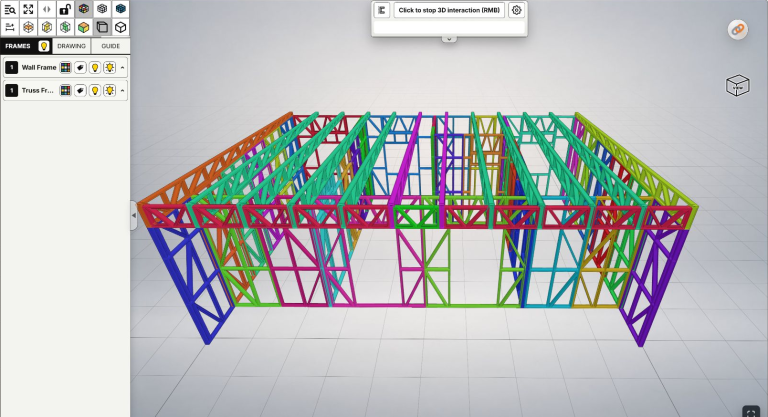
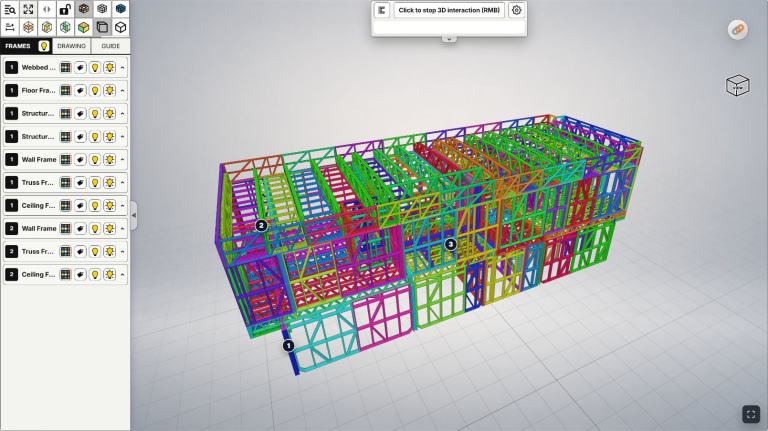
The video compares the owner's workspace with the visitor's view: viewing a public 3D presentation does not grant the owner's classification, CNC, editing or export tools. A separately issued link may have a different scope chosen by the owner, so not every link recipient necessarily has identical permissions.
Step 1: Check the Publishing path
Open the correct model's Properties from Model actions, then find Publishing path. Check the name and revision before acting. See Edit properties if you are unfamiliar with this page.
 Properties from
  Model actions, then find Publishing path. Check the name and revision before acting. See
 - Private — Owner-only workspace: use this when you do not want the model listed in Lobby. Check account availability and allowance messages. Any viewing link you issue still needs separate management.
- Lobby preview — Rough public preview: use this when the presentation is ready to be public. Choose it because you want public presentation, not because you assume it is a mandatory step after uploading.

Private selected: the model is not listed in the public Lobby. Review any separately issued viewing links as well.

Lobby preview selected for public presentation. Review the title, description and images before saving.
Step 2: Review content and existing access
Before using Lobby, review Title, Description and cover/gallery images. They may contain a client's name, site address, drawing image or an option not approved for presentation. Publish only what you are allowed to show; having a file on your computer does not by itself establish permission to upload it to a service or share it onward.
Descriptions, images and supplementary details remain optional for Private/Lobby. You do not need to add confidential information to fill the form or complete Market fields to continue. Title is required in the current workflow; the Properties guide distinguishes the other groups.
If you previously issued share or embed links, review their permissions and status through the available tools. Switching to Private is not confirmation that every old link has been revoked. Images someone has already seen or captured also cannot be recalled simply by changing Publishing path.
Step 3: Save and check the result
Keep the current choice if it already meets your needs. When a change is needed, choose the appropriate scope and use Save. The first-save action may be named Publish. Read Publishing path before using it; do not infer visibility from the word Publish alone.
 Save. The first-save action may be named Publish. Read Publishing path before using it; do not infer visibility from the word Publish alone.
Wait for a successful save, then reopen Properties to check the selection and status. Owners can still see their own models; opening one in your signed-in owner session is not evidence that a visitor can also view it.
An example of a saved model with Private status. Check both the status and Publishing path after saving.
Practical concerns about security and design assets
Can a Lobby visitor download the original IFC?
The current public presentation does not provide visitors with a download of the original source IFC. Viewing a model does not grant the owner's workspace, export tools or production data. This describes functional access; it should not be interpreted as a promise that everything visible is impossible to copy. Source-file protection explained.
Does the absence of an IFC download keep the design's appearance confidential?
No, if you have made its 3D presentation public. An authorized viewer can observe it and capture the screen. If the appearance or arrangement must remain confidential, keep it Private and grant separate viewing access only when appropriate. Do not publish sensitive geometry in Lobby solely because the original file has no public download button.
Does uploading transfer my rights in the design?
The current Terms say you retain the lawful rights you already hold, while granting the processing rights needed to deliver the service. That does not verify a file's provenance or turn someone else's work into your property. For a client project, confirm what you are permitted to upload and publish before proceeding.
Can Private data be used for AI training?
The published Privacy Policy does not authorize using Private source IFC files to train third-party generative AI under the current policy; that purpose would require separate notice and permission. Review the current policy before uploading sensitive project data.
Will a model become public when the Private allowance is exhausted?
It does not automatically switch to Public simply because the allowance is exhausted. Private allowances differ from monthly upload counts; switching to Lobby or deleting a model also does not refund a used Private slot. Check your account's remaining allowance and conditions, or the current plan page, before working with more models.
What should I keep under my own control?
Keep the original IFC, issue records and evidence of usage rights in your own storage; the workspace does not replace a backup. Keep sign-in details private instead of handing the owner account to someone who only needs to view a model. If you discover misuse, you can submit relevant information through Report abuse. Access controls reduce risk but do not create an absolute guarantee for every online situation.
Once viewing scope is clear, improve the presentation with the image and cover guide. Creating, checking and revoking share links will be covered separately so each action can be explained clearly.